Running a Workflow
Prerequisites
Section titled “Prerequisites”Before running a workflow, ensure:
- ✅ Android device is connected (USB or WiFi)
- ✅ Device shows “Connected” status in Devices panel
- ✅ Instagram app is installed on the device
- ✅ Instagram is logged into the target account
- ✅ Workflow is built and saved on the canvas
Starting a Workflow
Section titled “Starting a Workflow”You can start a workflow from the canvas or from the workflow list.

- Open your workflow in the canvas
- Make sure the correct device tab is selected (if you have multiple devices, use the + Add button to add device tabs)
- Click the ▶ Run button in the toolbar
- The workflow starts executing on the selected device
Execution Log
Section titled “Execution Log”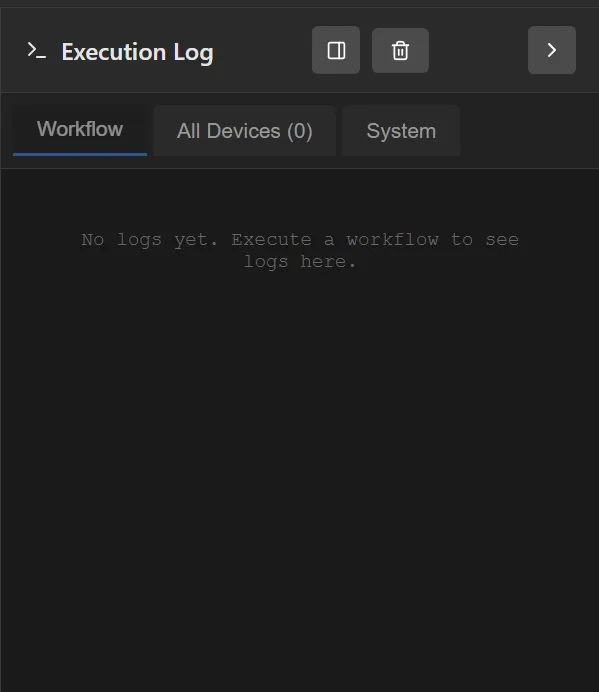
While a workflow is running, a log panel at the bottom of the canvas displays real-time activity:
- Timestamps for each action
- Current module being executed
- Action results (success, skipped, error)
- Device information
Visual Feedback on Canvas
Section titled “Visual Feedback on Canvas”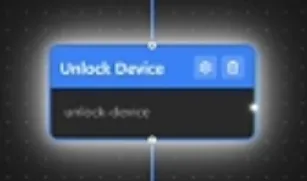
While running, the canvas highlights the currently executing module with a visual animation around it, so you can easily see which step the workflow is on.
What Happens During Execution
Section titled “What Happens During Execution”- Validation: FeedFlux checks workflow is valid
- Device Check: Confirms device is connected and responsive
- App Launch: Opens Instagram on the device (if not already open)
- Module Execution: Runs each module in sequence
- Delay Handling: Waits between actions (as configured)
- Error Handling: Manages unexpected situations
- Completion: Marks workflow as complete