Connecting Nodes (Modules)
Connections define the execution order of your workflow. FeedFlux executes modules sequentially, following the connection lines.
Creating a Connection
Section titled “Creating a Connection”There are two ways to create connections between nodes.
Method 1: Drag and Drop
Section titled “Method 1: Drag and Drop”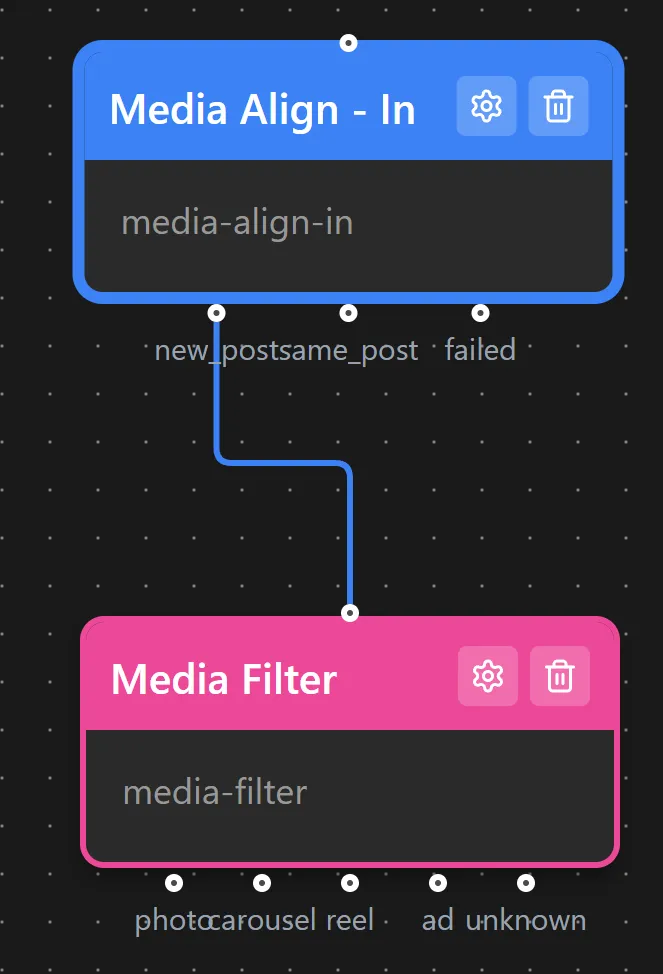
- Hover over the output handle (bottom dot) of the source node
- Click and hold
- Drag the line to the input handle (top dot) of the target node
- Release to create the connection
Method 2: Click-to-Connect
Section titled “Method 2: Click-to-Connect”- Click the output handle of the source node
- Click the input handle of the target node
- Connection is created automatically
Deleting a Connection
Section titled “Deleting a Connection”- Method 1: Click on the connection line, then press Delete
- Method 2: Right-click the connection line and select Delete
- Method 3: Drag the connection away from the handle to disconnect
Connection Rules
Section titled “Connection Rules”| Rule | Description |
|---|---|
| One Input | Each node can receive only one incoming connection |
| One Output | Each node has one output connection |
| Linear Flow | Workflows execute in a straight sequence — no branching on the canvas |
| Top to Bottom | Modules execute in the order they are connected |
Valid Connection Example
Section titled “Valid Connection Example”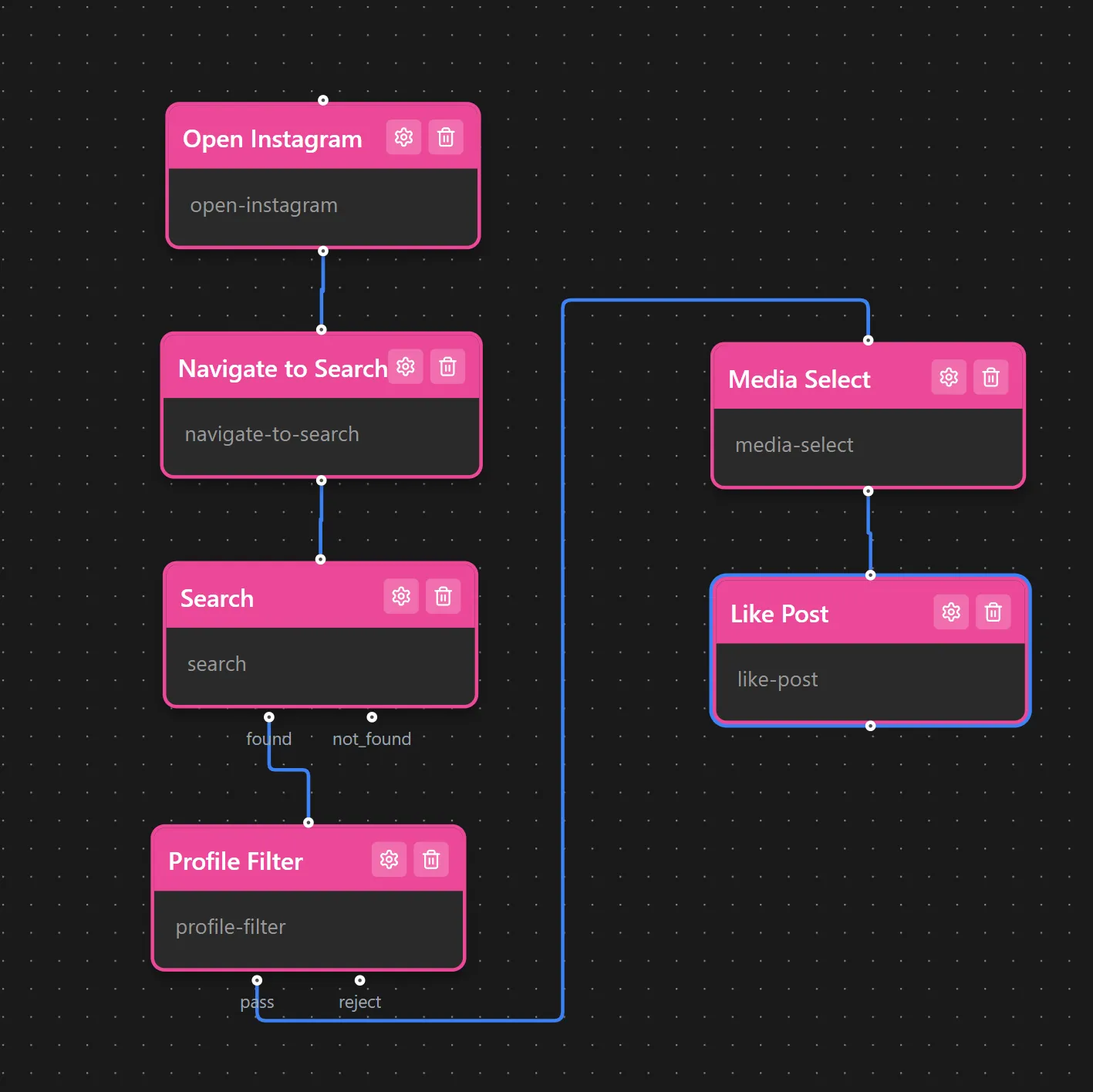
A basic workflow flows in one direction:
Start → Search Hash → Like Post → End
Connection Best Practices
Section titled “Connection Best Practices”- Keep it clean: Avoid crossing connection lines when possible
- Left to right or top to bottom: Maintain consistent flow direction
- Use the grid: Align nodes for cleaner visual organization
- Group related modules: Keep logically related actions close together