Viewing Connected Devices
FeedFlux shows connected devices through the + Add button in the toolbar.
Viewing Connected Devices
Section titled “Viewing Connected Devices”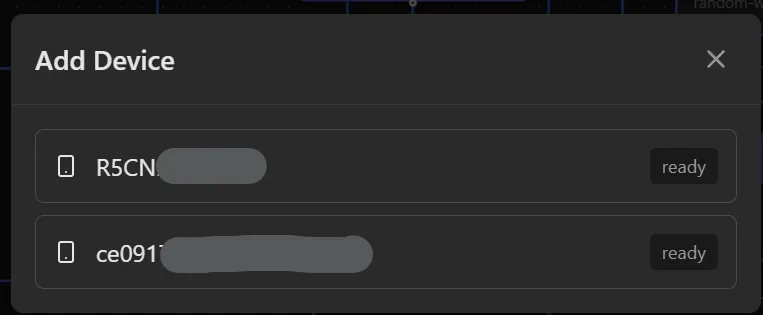
- Click the + Add button in the toolbar
- A popup opens listing all detected devices
- Each device shows its serial number and status (e.g., “ready”)
- Click a device to add it as a new tab in the canvas
Device Tabs
Section titled “Device Tabs”Each connected device gets its own tab in the toolbar. You can switch between devices by clicking their tabs. Each tab has its own canvas and workflow.
Refreshing Device List
Section titled “Refreshing Device List”If your device doesn’t appear in the Add Device popup:
- Click the refresh button (🔄) next to the + Add button
- Wait a few seconds for detection
No Devices Found?
Section titled “No Devices Found?”If no devices appear after refresh:
| Check | Solution |
|---|---|
| USB cable connected? | Reconnect the cable |
| USB debugging enabled? | Enable in Developer Options (see Getting Started) |
| Authorization popup? | Check phone for “Allow USB debugging” dialog |
| Correct USB mode? | Set to “File Transfer (MTP)” mode |
| ADB drivers installed? | Install device manufacturer’s USB drivers |